Venue manager
The Fleet Hub supervises your RetroBat cabinets, identifies players, drives tournaments and screens. Offline-first: the hub listens to cabinets, it never commands them. Without network or hub, every cabinet keeps working, and the license never turns a cabinet off.
Install
- Buy the license that fits on nelfetech.com/salles - licensing is counted per equipped cabinet, hub included.
- Install the hub on one machine of the venue's local network (the front-desk PC is fine): unzip the release - like APIExpose, everything ships as a single executable at the root,
RetroBat.Hub.exe, with itswwwrootfolder next to it. - Double-click
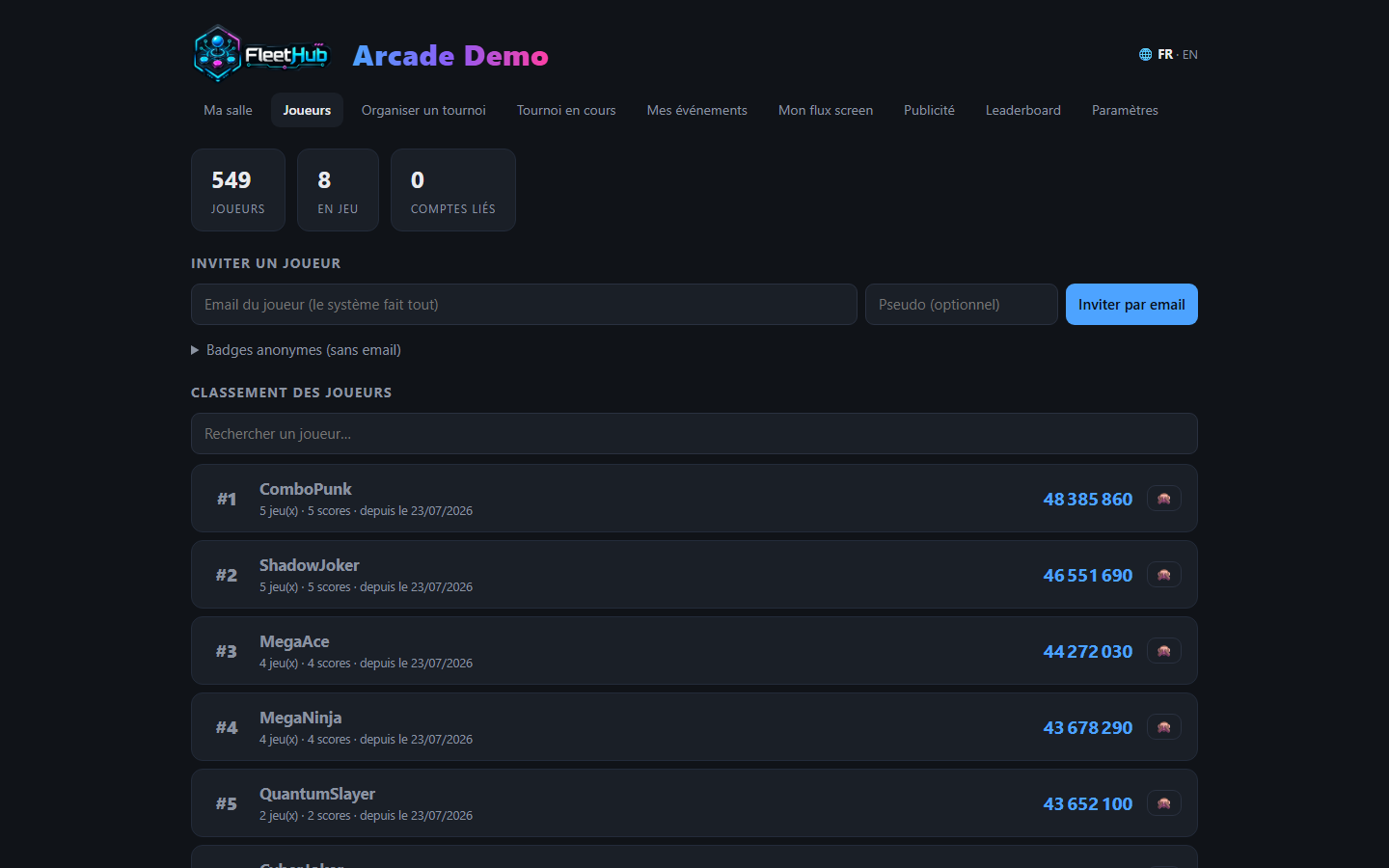
RetroBat.Hub.exe, then open http://localhost:12400 in a browser: that's the venue console (My venue, Players, tournaments, leaderboard, Settings). All configuration and venue state live next to the exe (appsettings.json, thestate\folder - back that folder up, it holds your scores, license and keys). The optional Windows installer adds auto-start with the session. - Activate the key in Settings (first entry = activation; then works 14 days without internet).
- Enroll your cabinets: use the "🔍 Discover cabinets" button in Settings (the hub scans the local network), or type the cabinet address
http://cabinet-IP:12345. Restart the hub to connect them.
In My venue, the ✏️ pencil next to a cabinet's name renames it ("Bar bartop", "Cockpit"…) - the name is immediate and kept. The Quit the game button cleanly closes the running game, whether it runs under RetroArch or a standalone emulator (MAME, PCSX2…).
Player identification
- Cabinet QR: enable
CabinetBadgeOverlayin the cabinet's APIExpose configuration - the check-in QR and cabinet number appear at the bottom-right of the screen, and disappear while a player is checked in. A printable sticker sheet exists too. - The player scans the cabinet's QR with their phone, enters their email the very first time, then confirms with one tap. Re-scan = leaving.
- There is nothing to create at the desk: players sign themselves up at the cabinet. The Players page is there to invite by email, and keeps an anonymous badges fallback for anyone who refuses to give one.
Venue screens
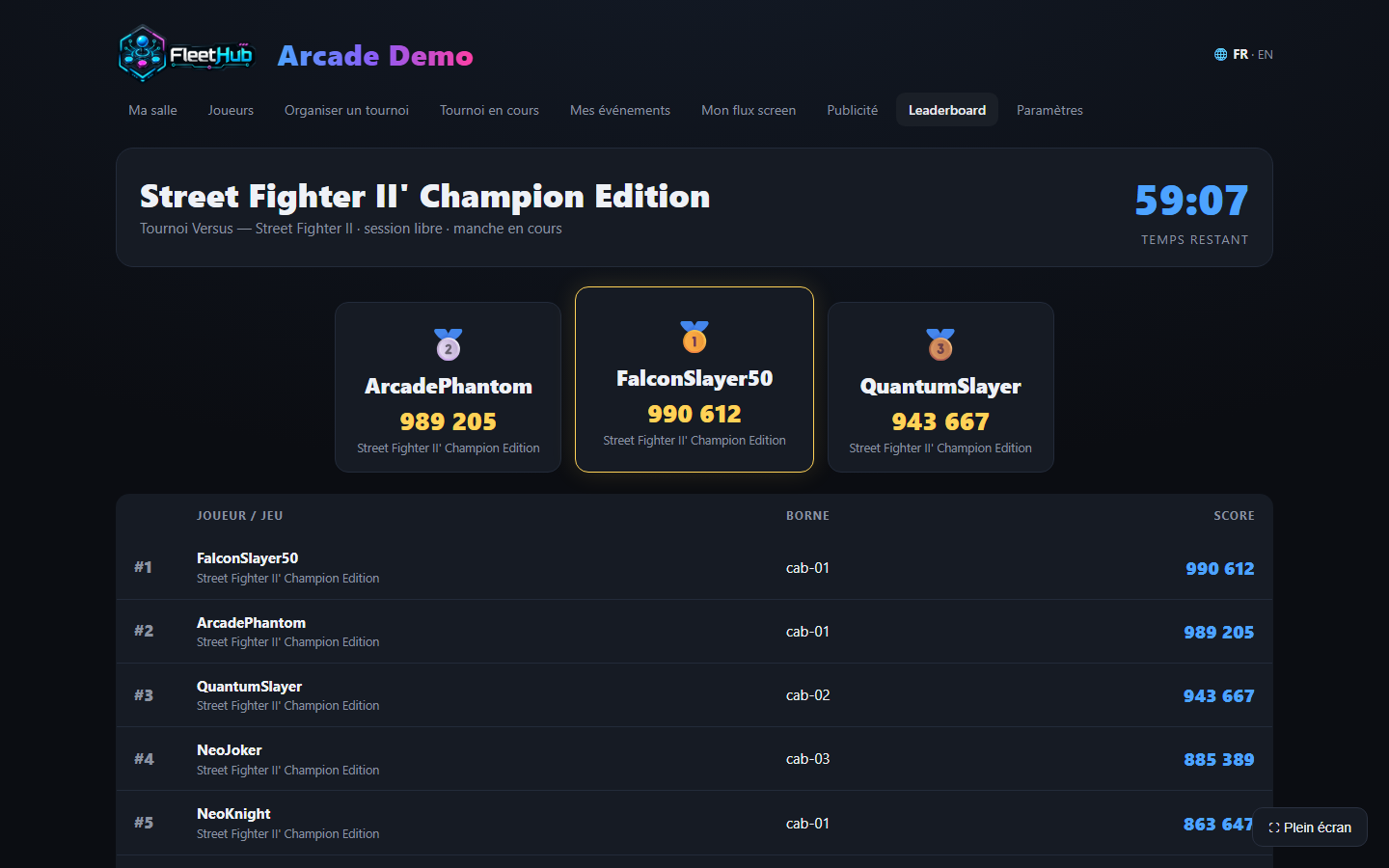
On each physical display, open screen.html?name=bar-screen (one name per display). From the console you choose what every screen shows: leaderboard, tournament screen, fleet mosaic… A screen keeps its content - podium included - until you change it.
Announcing a player
Route a screen to a player's public card (…/retrocreator/card/TheirPseudo): avatar, honors and top 3 show up big - perfect to present a champion or invite a player to a cabinet.
My screen feed - screens, video control room and stream
The My screen feed tab of the console drives all the venue's displays and live output.
Pairing a screen. On a smart TV or mini-PC, open http://<hub>:12400/screen.html: the screen shows a 6-digit code. Type it in the tab, name the screen ("entrance TV") - it is remembered, even after the TV reboots. The display plugged into the hub PC itself shows up in one click ("Show here"), no code needed.
Picking the content. Per screen: a fixed view or a rotation - Live leaderboard (rows glide when a player overtakes another, scores roll like a counter), Records wall, Events, Live games. For the leaderboard, choose: venue continuous, current challenge, or automatic. Manual control forces one view on every screen at once (big moment), then "Resume the schedule".
Live games on the screens. The video control room puts cabinet gameplay on your screens in under a second (picked cabinet, rotation, or automatic switch during tournaments). A free cabinet is broadcastable by default; an occupied one only goes on screen if the player allowed it in their app - their rule, not yours.
The venue stream. Paste the venue's Twitch stream key (stored encrypted), press "Start the control room": the venue mix (games, leaderboards, branding) goes live on your channel. Branding is automatic and set with three checkboxes: bottom band with the venue name, venue logo (uploaded in Settings, next to the address), per-cabinet lower-third (player, game and its logo, running event).
Sponsoring
Drop your ad images and videos in the sponsors folder (next to the hub), or add a YouTube link / Twitch channel. Each campaign is set in My screen feed: enabled, start/end dates, frequency, duration. When a campaign is due, every screen plays it at the same time, fading over its content - sellable visibility for your partners.
Online rankings (optional)
Your venue can join the public rankings: the hub signs every score batch (venue-specific key) and pushes them whenever internet is available. Gameplay itself depends on nothing. Enrollment uses the hub's public key (visible in the console); checked-in players then find their "verified venue" marks on their online account.
Fill in your venue's profile (city, region, country, chain) at enrollment: it is what places your players in the rankings at every scale - champions of the venue, the city, the chain, the region, the country and the world.
Roles and moderation
On the online platform, a venue can delegate scoped roles to NelfeTech accounts:
- owner - all rights on the venue;
- moderator - can hide an inappropriate nickname on public rankings (it then shows
##;-)##); - organizer - announces events to players who follow the venue (never a command to the cabinets).
The matching tools appear in the Config tab of that account. (Roles are assigned platform-side.)
Tournaments
See the organizer guide - and before any event, the golden rule: check the game's signals, then test round.